Procreate Dreams 2 Brushes system upgrade
Upgrading to the new Brushes system
In Procreate Dreams version 2, your brushes are stored in the iPadOS Files app, and can be synced using iCloud Drive.
When you update to Procreate Dreams 2 from version 1, your brushes will begin to copy, moving from the old brush system to the new brush system. This upgrade may take some time if you have quite a few custom brushes. Also, you get 180 new animation-centric brushes!
Heads Up
Please keep Procreate Dreams open and foregrounded during the Brushes system upgrade. If you minimise or close Procreate Dreams, this will prevent the upgrade from completing successfully.
Heads Up
If you are installing a completely fresh version of Procreate Dreams, you won't need to upgrade your brushes, and they will be stored on iCloud Drive by default (or On My iPad if you don’t have iCloud enabled). Jump straight to the ' Using Brushes ' section to see how to use the brushes inside the app, or the ' Brush storage ' section to see how to locate and store brushes in the Files system.
Once the upgrade is complete, you will be given the option to store your brush libraries in iCloud Drive, if you have it enabled, or in your iPad storage (On My iPad).

If you opt to store your brushes in iCloud Drive, the file path for your brushes will be Files app → iCloud Drive → Procreate Dreams → Brushes → Classic Library (and others) → Brush sets → Brushes.
Pro Tip
Setting iCloud requires you to have sufficient storage space in your iCloud account in order to sync the brushes across devices. While you will still be able to use your brushes on this iPad if you have sufficient local iPad Storage, be sure to remember this if you want to sync your brushes between devices.
If you opt to store your brushes in ‘On My iPad’, the file path for your brushes will be Files app → On My iPad → Procreate Dreams → Brushes → Classic Library (and others) → Brush sets → Brushes.
Tap here once you are happy with your choice for Brushes storage. You will move into the Theater, where you can create a new movie or upgrade an existing movie.
Heads Up
When your brushes moved into Files (the iPadOS file system), any duplicate brushes in the same set will have had a number appended to their name. Certain special characters (<, >, :, “, /, \\, *, %, \, |, ?, and periods (.) at the start of brush/set names) will also have been removed from the brush name as it became an object in the file system. These characters are reserved by operating systems, and may not be used in filenames.
Brushes upgrade interrupted?
If your Brushes upgrade has been interrupted for any reason, you can continue the upgrade by tapping Continue on the following screen:

If you select Cancel, you can reattempt the upgrade at a later time by heading into a movie, then entering a Drawing or Flipbook, tapping on the title in the top left → Help → Repeat brush upgrade.
Brushes upgrade failure?
If your Brushes upgrade has failed, this can indicate low iPad Storage Space or tricky brush files. First, follow the steps in this Apple article to try and clear up some iPad Storage Space, then attempt the upgrade again using the Try again option on this screen:
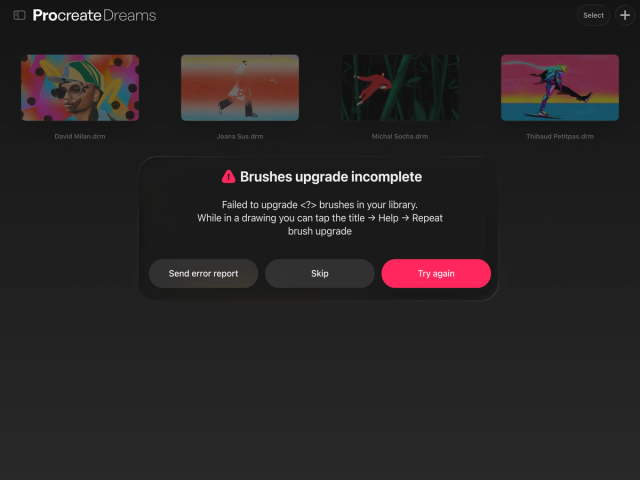
You can also Skip the brushes that failed to upgrade, and continue using the app, or send us an error report with the 'Send error report' button.
If you Skip, you can still attempt the brush upgrade again later by entering a movie, then a Drawing or Flipbook, tapping on the title in the top left → Help → Repeat brush upgrade.
Using your custom brushes
If you have updated from a previous version of Procreate Dreams, all of your custom brushes will be available in the Classic Library, accessible by pinching inwards on the Brushes interface.
Check the video in the Brushes navigation section below.
Using brushes in the Procreate Dreams app

Tap on an existing drawing/Flipbook and then tap Edit Drawing/Flipbook to enter Draw & Paint mode, or tap the + button on the far right and create a new drawing or Flipbook.
Tap once on Paint, Smudge or Erase to select the tool. Tap again on the selected tool to open up your Brushes interface.
Your brushes are in the list on the right, with your current brush highlighted in pink.
Your brush sets are in the list on the left, with your current set highlighted in pink.
Pinch in on the Brushes panel or tap on the title of your library and select ‘Back to libraries’ to return to your other brush libraries. Your current brush library will be highlighted in pink.
New Animation brushes
Kyle T. Webster has been working hard with our crew to bring you 180 new brushes that are designed specifically for the purposes of animation.
Pencils, boil brushes and more await you in the new brush sets. Check out the Handbook for more information.
Brushes navigation in the new system
Pinch inwards on the Brushes interface to access brush libraries.
Heads Up
If you had custom brushes in Procreate Dreams before updating, these will be available in your 'Classic Library'.
tap a brush, brush set or brush library to make it active
tap and hold on a brush, brush set or brush library to access options like rename, duplicate share, delete, etc.
tap twice on a brush to access Pressure & Smoothing options for the brush
change the storage location for your brushes by entering a movie, then tapping on Movie settings (title of your movie) → Preferences → and toggling Store brushes in iCloud. If you select 'All brushes' when moving, all your current brushes will move to the other storage location. If you select 'New brushes only', then only brushes that are new or changed will move across
Danger
You can now delete custom and default brushes, brush sets and brush libraries. If you have accidentally deleted a default or custom brush, head to the recovery section of this article to attempt to recover it. If you have deleted a default library, head to the brush libraries view and then tap on ‘Brush Libraries’ at the top, then tap on ‘Restore Procreate libraries’.
Brush storage in the new system
With Procreate Dreams 2, your brushes will exist as independent files in the iPadOS Files system. Each brush will be a separate file, contained within a folder which is your brush set.
The brush sets will be in a folder that is your brush library itself. When you make changes in Files, they will be reflected in Procreate Dreams after a moment, and vice versa.

Storage in iCloud Drive
If you choose to store your brushes in iCloud Drive, they will be in Files → iCloud Drive → Procreate Dreams Brushes.
You can choose to store the brushes here by opening up any movie in Procreate Dreams, entering a Drawing or Flipbook, then tapping on Settings → Prefs and toggling on Store brushes in iCloud:

Be sure that you have iCloud switched on , and plenty of space available, especially if you have quite a few brushes.
Be sure to check out the Procreate Dreams 2 Handbook, and if you have any questions about the Brushes upgrade, please feel free to contact us directly and we'll assist however we can.
Sorry. We’re having trouble copying to your clipboard.
Try directly copying the link below.