Dreams Handbook
Sorry. We’re having trouble copying to your clipboard.
Try directly copying the link below.
Multi-select
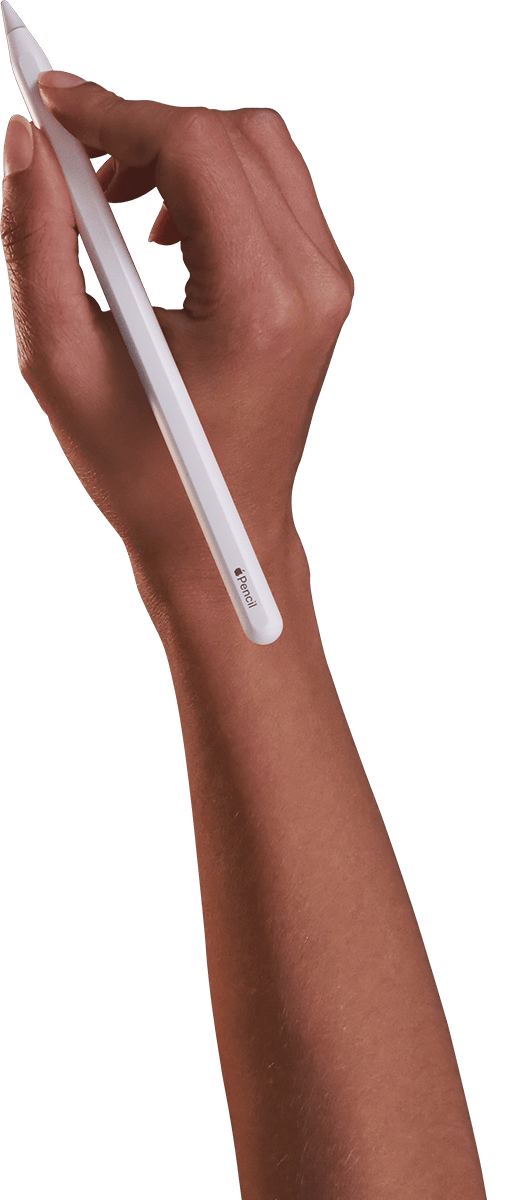
Multi-select is a tool in Procreate Dreams that, with the Apple Pencil, enables you to select and move or modify multiple pieces of content at the same time.
Pro Tip
You can use Multi-select if you don't have an Apple Pencil - just open a movie, then tap on the title of the movie on the left to enter Movie Settings. In here, head to Prefs → Gestures, and toggle on Enable Multi-select with a finger.
You can use Multi-select both to adjust the length and positioning of content and keyframes. You can also use it in Draw & Paint when working in a Flipbook to adjust multiple frames on your animation tracks.
Multi-select in the Timeline
To enable Multi-select in the Timeline, tap the button on the left of the main toolbar, adjacent to 'Theater' and the Movie settings button.
While Multi-select is active, draw around tracks, content, and keyframes with your Apple Pencil to select and modify them.

Tap Multi-select on the left in the main toolbar, next to 'Theater' and the Movie settings button.
Circle or draw over content, tracks, or keyframes in your Timeline with Apple Pencil to select. This will leave a glowing red trail to show where you’ve drawn your selection.
Selected elements are highlighted with a red outline.
Add extra elements to your selection by circling or drawing on them.
Remove elements from your selection by circling or drawing across content or tracks that are already highlighted.
With multiple elements highlighted, tap and hold on one summon the context menu for that type of content. If you have selected content and keyframes and you tap hold on a keyframe, you will see a context menu for the keyframes, for example.
Pro Tip
Within the context menu, you can cut, copy, and paste. This is especially useful for keyframes, as you can copy and paste keyframes to different pieces of content can accept the values, like X or Y Translate for a Drawing.
Tap hold tracks, or content (from the centre, not the handles) to move it together, to a different location on the Timeline.
Drag the handles of content to retime it together, and as with Free Trim, hold another finger down at the same time to push or pull them in unison.
If you use Multi-select to highlight more than one piece of content, such as drawings in a sequence, tapping and holding on them then choosing 'Flip Content' will swap their ordering and positions.
Multi-select in Flipbook
To enable Multi-select in Flipbook, create or edit a Flipbook, then tap the first icon on the far right of the interface.
While Multi-select is active in the Flipbook, draw across frames in your animation tracks to select them.

Tap Multi-select on the right of the toolbar in the Flipbook, just to the left of the new track and new frame icons.
Circle or draw over frames in your Flipbook with Apple Pencil to select. This will leave a glowing red trail to show where you’ve drawn your selection.
Selected elements are highlighted with a red outline.
Add extra elements to your selection by circling or drawing on them.
Remove elements from your selection by circling or drawing on frames that are already highlighted.
With multiple elements highlighted, tap and hold on one to summon the context menu for your frames. Within the context menu, you can cut, copy, paste, and duplicate, and flip the selected frames.
Tap one of the frames to summon frame handles. Dragging any of the handles allows you to retime the frames all together.
Pro Tip
If you don't have an Apple Pencil, you can use Multi-select in Flipbook by tapping on multiple frames individually before modifying them.
Multi-select Reload
Tap and hold on the Multi-Select button to reload your previous selection. This will highlight any tracks, content, and keyframes that you had last selected. This can be useful for adjusting content that you have just changed, without having to reselect the exact objects.
In the example below, on the left, Multi-select was used to select the two Flipbooks so they could be trimmed together. On the right, Multi-select has been held down to reload those two Flipbooks that were previously selected:


Pro Tip
Multi-select reload can also be used in Flipbook mode to reselect your last-selected set of frames.
Sorry. We’re having trouble copying to your clipboard.
Try directly copying the link below.
Still have questions?
If you didn't find what you're looking for, explore our video resources on YouTube or contact us directly. We’re always happy to help.