Pocket ハンドブック
クリップボードにコピーができませんでした。
以下のリンクをコピーしてみてください。
Palettes
In Procreate Pocket, Palettes store collections of color. Each color is stored as a swatch in square cel of a palette. The palette that you are using when painting is called your active palette.
Some projects need precise color matching. This is where Procreate Pocket’s Value mode comes in.
Store your favorite colors as swatches. Create and import palettes so the color scheme you need is always ready. Save, share, and organize palettes for later use in your Palette Library.

Denoted by a blue tick, your active palette is the one that will be available when painting. You can see your active palette in the other Colors views by dragging the swipe handle upwards.
You can change your active palette by tapping on the the ellipsis icon to the right of any palette in the list, then selecting 'Set as active'.
A palette in Procreate Pocket is made up of a series of up to 30 swatches. Each swatch represents a specific color.
Procreate Pocket offers two main styles to view and work with your palettes. Compact is the default style and provides a condensed overview of each of the swatches in your palettes.
Cards is a style that causes each swatch in a palette to be represented by a larger square with a color label.
プロの技
Cards can be useful if you have sight impairments and find it difficult to see small details. The color labels should also be helpful if you're using Speak Screen.
Other palettes will appear below your active palette when you enter the palettes tab. Swipe up and down to access these, or consider expanding your palettes view by swiping the top center handle upwards.
Tap the + button to create a new empty palette. You can also import a palette file (.swatches, .ase (Adobe® Swatch Exchange) or .aco (Adobe® Color files) from Files, or use an image from Photos and generate a new palette based on the colors in the image. You can also restore the default palettes from this menu.
プロの技
If you prefer, drag and drop compatible palette files from Files into the Palettes menu, or drag images from Photos into the same area to generate palettes.
Launches your iPhone's camera and allows you to create a palette based on the colors in the photograph. See a live preview of the palette that will be generated when you take the photo.
Tap on the ellipsis to bring up options for the palette you've selected. These are as follows:
Set as active: set the palette you've selected as your current 'active' palette. (only applicable when you don't select your active palette)
Duplicate: Immediately create a direct copy of the palette you have selected.
Share: Export the palette as a .swatches file. Upon export, this will bring up iOS' sharing system and allow you to save or send the file elsewhere.
Delete: Permanently remove the palette from your list.
Reorder Palettes
Each palette has a title at the top left. To rearrange the order of your palettes, press and hold a title. Drag the palette to a new position in the list, then release.


Capturing a Palette from the Camera
When using the camera to create a palette, the Visual / Indexed button switches between two different modes. These modes affect how Procreate Pocket builds a palette of swatches from the visual information captured by the camera.
Visual mode
Visual mode builds a palette of swatches from what the camera captures directly in front of the palette area only.
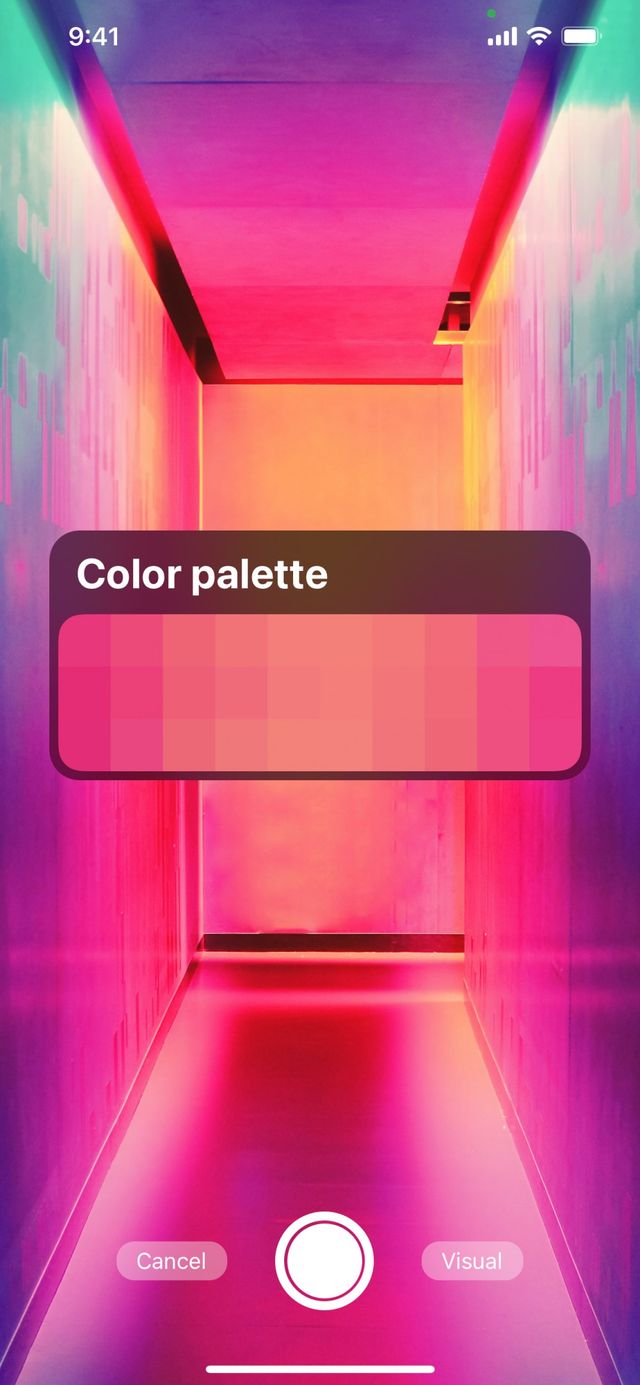

Depending on the color contrast of the subject matter you are capturing, this can lead to a subtle range of colors in your palette.
Indexed mode
Indexed mode builds a palette of swatches from visual information captured across the entire screen area.
Indexed mode captures a broader range of contrasting colors to create a palette.
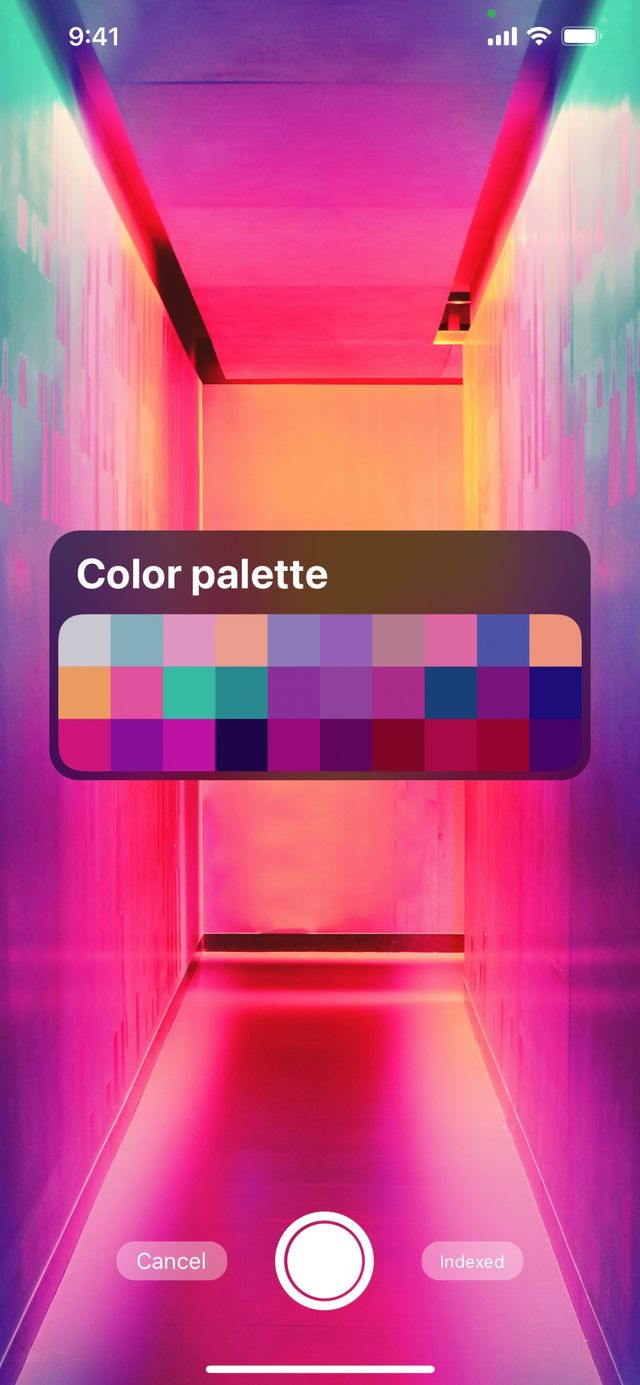
Switch between the two modes to see the difference in swatch colors Visual and Indexed produce. When happy with the variety of swatch colors in your palette, tap the shutter button. This will capture and save the swatches to Palettes. Initially your custom made palette title will be ‘Color palette’. You can rename this by tapping the palette's title.
Swatches
As palettes are comprised of swatches, the following section explain how to create, organise, and work with swatches in your palettes.
Create or Set a Swatch
Tap an empty space in the default palette at the bottom of Colors to save your current color as a new swatch.

You can replace existing swatches if there are no empty spaces in a palette. Press and hold a swatch, then tap Set current color.
Use a Swatch
To use a color from your palette, tap it to make it your currently selected color.
SwatchDrop
Drag a color from a Color Palette’s Swatch. Whilst holding onto the Swatch tap Done and then drag it onto an area of your artwork. Release it to flood-fill that area with the swatch color.
Find out more on how SwatchDrop works in the Colors > Interface section.
Reorder Swatches
Rearranging your swatches can help you visualize how different colors will work together.
To move a swatch, tap and drag it to a new position. Lift your finger to drop it. Your other swatches will move to accommodate the repositioned swatch.

Clear a Swatch
To delete a color from your palette, press and hold that swatch, then tap Clear swatch. It will vanish, leaving an empty space.

クリップボードにコピーができませんでした。
以下のリンクをコピーしてみてください。
お探しのものが見つかりませんか?
探しているものが見つからない場合は、YouTube動画のリソースを検索するか、直接お問い合わせください。いつでも喜んでお手伝いさせていただきます。