Pocket ハンドブック
クリップボードにコピーができませんでした。
以下のリンクをコピーしてみてください。
Import and Share
Learn how to import an image to create a new canvas, and share your art with the world.
Import
Create a new canvas using the Files app, or by dragging and dropping an image into Procreate Pocket.
Import from Files
Tap the Files icon at the bottom of the Gallery menu to open the Files app. Navigate to the folder where your stored images are, and tap on the file to import it.


Import from Photos
Tap the Photos icon in the bottom Gallery menu to open the Photos app. Navigate to the folder where your stored images are, and tap on the image to import it.
Share
Procreate Pocket provides a variety of ways to share your artwork with friends, clients and colleagues.
Share a Single Image
Swipe an artwork thumbnail to the left to reveal the Share button.
Tap this Share button on any canvas to select your file format and destination.


Share Multiple Images
Share many artworks at the same time from Gallery Select mode.
Tap the Select button to enter selection mode. Tap canvases to select them. Any selected artworks will display a blue tick.
Tap the Share icon (box with upwards arrow) at the bottom of your Gallery to share all selected artworks in the format of your choice.

Share Destinations
You can share your files to a huge range of apps, folders, and cloud services.

iOS Sharing
Procreate Pocket uses the iOS Sharing system to share to AirDrop, AirPrint, or any app and service that provides a document extension.
Files App and Finder
Use View More → Save to Files app to export artworks to any location accessible by the Files app, such as iCloud Drive or On My iPhone.
If you save your artwork to iCloud Drive, you can access it using Finder or the Files app on your other devices, as soon as it syncs with the service.

macOS
Exporting to macOS is great for speedy transfers and backups to your Mac.
プロの技
iTunes has been retired as of the Catalina operating system update. But you can save Procreate files to iTunes if you are running any macOS previous to Catalina. See the Apple website for how to save files to iTunes.
Plug your device in using the suitable USB cable and open a Finder Window in macOS. Once detected, your iPhone will appear under Locations in the lefthand of the window.
Click on your iPhone in the Finder then select Files in the top navigation to see a list of your phone's apps. Select Pocket to open the directory. You will see three folders titled Fonts, ACC and Inbox.
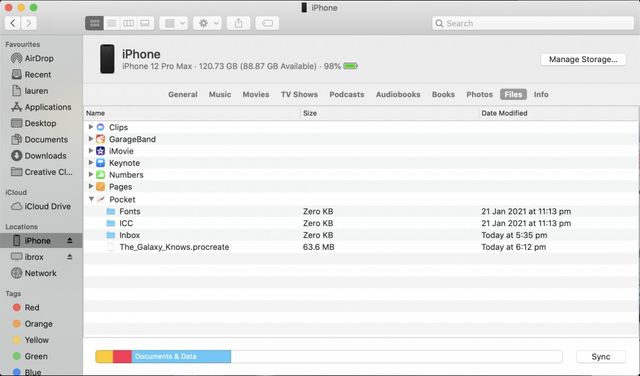
Share a single or multiple images as described above and select iTunes from your Share Destinations. The images will now appear in your Pocket directory on your Mac ready to be dragged, dropped and shared like any other file in macOS.
クリップボードにコピーができませんでした。
以下のリンクをコピーしてみてください。
お探しのものが見つかりませんか?
探しているものが見つからない場合は、YouTube動画のリソースを検索するか、直接お問い合わせください。いつでも喜んでお手伝いさせていただきます。