Dreams ハンドブック
クリップボードにコピーができませんでした。
以下のリンクをコピーしてみてください。
コンテンツ
「タイムライン」上で画像、描画、ビデオ、テキスト、オーディオを組み合わせて、ムービーに動きや表情を加えましょう。

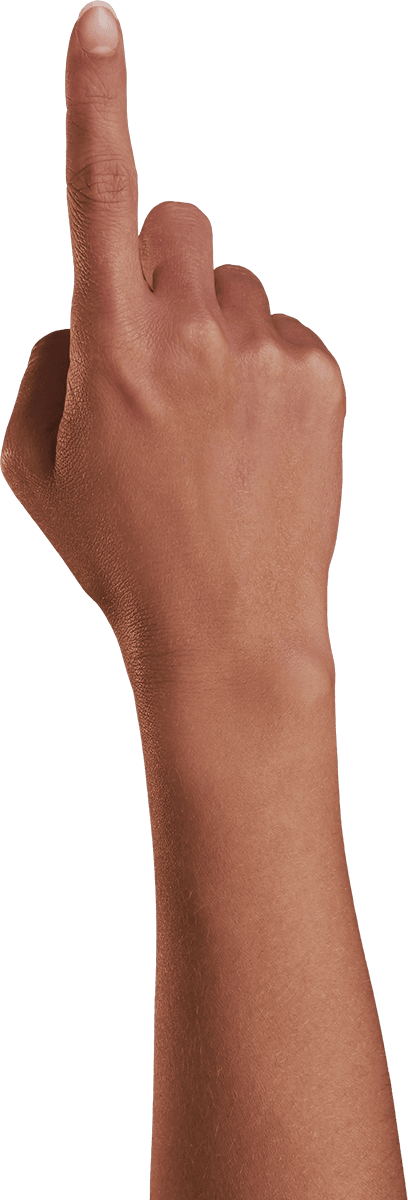
ビデオ、画像、オーディオの読み込み方法:
「+ ボタン」をタップして「作成」メニューを開き、「写真」「ビデオ」または「ファイル」をタップします。
読み込みたいコンテンツを選択します。
選択したコンテンツが読み込まれ、「タイムライン」の新規トラックとして表示されます。
対応ファイル形式については、こちらのハンドブックの 「コンテンツの種類」 ページをご覧ください。
コンテンツの作成
Procreate Dreams の「描画 & ペイント」や「テキスト」ツールを使って、オリジナルコンテンツを作成できます。
描画コンテンツの追加方法:
「作成」ボタン →「Flipbook」または「描画」をタップします。
「描画 & ペイント」モードが開き、描画コンテンツが「タイムライン」の新規トラックに表示されます。
Procreate Dreams でのスケッチ、描画、ペイント方法の詳細については、こちらのハンドブックの 「描画 & ペイント」 セクションをご覧ください。
テキストの追加方法:
「作成」ボタン →「テキスト」をタップします。
「テキスト」ツールで、テキストの追加や編集ができます。
プロの技
Procreate Dreams でのテキストの追加や編集方法は、Procreate での方法と同様です。詳しくは、Procreate ハンドブックの 「テキスト」 セクションをご覧ください。
新規トラックの追加方法:
「作成」ボタン →「トラック」をタップします。
コンテンツの選択、移動、トリミング
「タイムライン」でコンテンツを選択、移動、トリミングしてムービーを作成します。
コンテンツの選択
選択したコンテンツに対して、「ステージ」で変形、キーフレームを追加、または「描画 & ペイント」で編集します。
「タイムライン」でコンテンツをタップすると、「再生ヘッド」の位置でそのコンテンツが選択されます。
「ステージ」にコンテンツが表示されると、その周囲にバウンディングボックスが表示されます。
コンテンツの移動
「タイムライン」上でコンテンツを移動させると、ムービー内での位置(再生されるタイミング)が変更されます。また、トラック間でコンテンツを移動させると、「ステージ」での表示位置が画面の手前または奥へと変更されます。

コンテンツを長押ししてからドラッグし、「タイムライン」上を移動させます。
コンテンツのトリミング
コンテンツの再生時間を調整して、ムービーのタイミングを整え、完璧なカットを実現します。

コンテンツを1度タップし、さらにもう一度タップすると、コンテンツの左右両端にハンドルが表示されます。
調整したいコンテンツの左端 / 右端を長押しすると、その部分が赤くハイライトされます。
端を押さえて左 / 右にドラッグし、コンテンツの再生時間を調整します。
プロの技
コンテンツの左端 / 右端を長押しし、そのまま左右にドラッグするだけで、コンテンツの再生時間を縮めたり延ばしたりできます。
コンテンツの再生時間が最大に達した場合や、さらに延長すると同じトラック上の隣接するコンテンツに重なってしまう場合、トリミングが停止します。この状態でさらにトリミングを続けるときは、以下で説明するプッシュ / プルを使います。
Procreate Dreams のトリミングは非破壊編集です。そのため、あとからコンテンツの再生時間を元に戻せます。また、コンテンツをトリミングしても、ムービーファイルのサイズは小さくなりません。
コンテンツをフリートリミング
同じトラック上で隣接しているコンテンツは、プッシュ / プルで同時に再生時間を調整できます。この操作では、隣接するコンテンツ同士の相対的な位置関係を維持したまま、コンテンツのタイミングを調整できます。

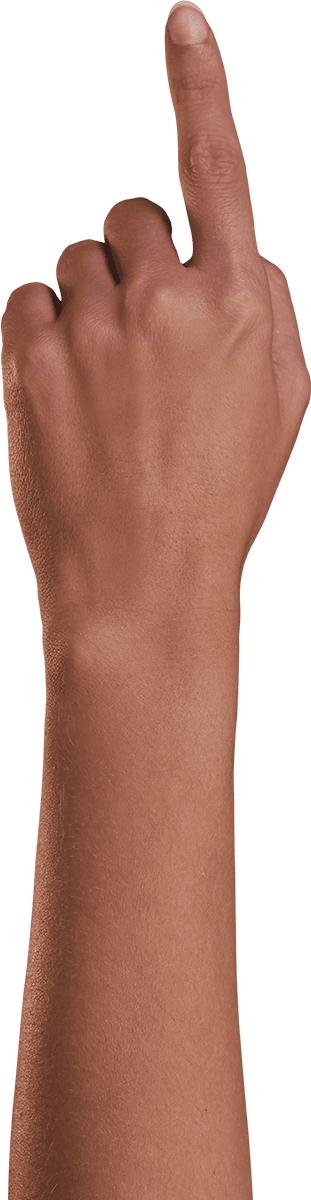
プッシュ / プルしたいコンテンツの左端 / 右端をその部分が赤くハイライトされるまで長押します。
別の指で画面を押さえます。
端を押さえて左 / 右にドラッグし、コンテンツの再生時間を調整すると、「タイムライン」上で隣接するコンテンツがプッシュ / プルされます。
プロの技
インターフェイス上部に「フリートリミング」と表示されていれば、そのモードに入っています。
コンテンツとモード
使用しているモードによって、コンテンツの変更方法が異なります。
コンテンツの移動
「構成」 モードでは、「ステージ」上のビジュアルコンテンツを移動、回転、伸縮、反転できます。 「パフォーム」 モードでは、コンテンツに加えた変更の記録、 「キーフレーム」 モードでは、キーフレームの入力や編集ができます。

構成モード:
「ステージ」領域で、コンテンツの移動、拡大縮小、サイズ変更ができます。
プロの技
「構成」モードでコンテンツを変更しても、キーフレームには影響しません。キーフレームデータとは独立して動作するため、エレメントを移動してもプロパティは保持されます。
「タイムライン」でコンテンツを選択し、「ステージ」領域をタップすると、コンテンツの周囲に青いバウンディングボックスが表示されます。
バウンディングボックスの内側 / 外側からドラッグして、「ステージ」および「バックステージ」領域内でコンテンツを移動させます。
コーナーの点(ノード)をドラッグすると、コンテンツの縦横比を維持したまま拡大縮小できます。
辺の中央にある点(ノード)をドラッグすると、コンテンツが同軸方向に伸縮します。反対側の辺上の点を越えてドラッグすると、コンテンツが反転します。
パフォームモードとキーフレームモード:
コーナーの(ノード)やバウンディングボックスを使って、コンテンツのサイズ変更や伸縮ができます。
「タイムライン」でコンテンツを選択し、「再生ヘッド」をタップして「移動」→「移動と拡大縮小」のキーフレームを追加します。
「ステージ」上でバウンディングボックスのコーナーの点(ノード)をドラッグすると、縦横比を維持したままコンテンツが拡大縮小します。
バウンディングボックスの辺をドラッグすると、縦横比を考慮せず、コンテンツが同軸方向に変形します。反対側の枠を越えてドラッグすると、コンテンツが反転します。
バウンディングボックスを「ステージ」や「バックステージ」の任意の場所へドラッグすると、バウンディングボックスの位置を変更できます。
コンテンツ上部の回転ハンドルをドラッグすると、コンテンツが時計回り / 反時計回りに回転します。
コンテンツの回転
「構成」モードでは、コンテンツは中心点を基準に回転します。「パフォーム」と「キーフレーム」の各モードでは、コンテンツにアンカーポイントが設定され、それを中心に回転します。

構成モード:
「タイムライン」でコンテンツを選択し、「ステージ」領域をタップすると、コンテンツの周囲に青いバウンディングボックスが表示されます。コンテンツ上部のグレーの点(ノード)をドラッグすると、コンテンツが中心点を基準に回転します。
パフォームモードとキーフレームモード:
「タイムライン」でコンテンツを選択し、「再生ヘッド」をタップして「移動」→「移動と拡大縮小」のキーフレームを追加します。
「ステージ」で、回転させたいコーナーの点(ノード)をタップします。その点(ノード)の近くに回転ハンドルが表示されます。
回転ハンドルをドラッグすると、コンテンツのアンカーポイントを基準に回転します。
アンカーポイントの編集
アンカーポイントとは、コンテンツが回転する際の基準となる位置です。各コンテンツには固有のアンカーポイントがあります。
お知らせ
アンカーポイントは「パフォーム」モードと「キーフレーム」モードでのみ使用および設定できます。「構成」モードでは、コンテンツは常にその中心点を基準に回転します。

インターフェイス下部で「パフォーム」モードまたは「キーフレーム」モードを有効化します。
「タイムライン」でコンテンツを選択し、バウンディングボックスの右上にある「…」ボタンをタップすると、変形オプションのコンテキストメニューが表示されます。
「アンカーを編集」をタップします。現在のアンカーポイント(錨形のアイコン)がバウンディングボックスに表示されます。
アンカーポイントを任意の位置にドラッグします。
右上の「完了」をタップします。
プロの技
アンカーポイントを動かしながら別の指で画面を押さえると、アンカーポイントがコンテンツ内の基準位置にスナップします。
変形時のスナップを有効化
「ステージ」でコンテンツを並行移動、回転、拡大縮小する際に、コンテンツをスナップできます。スナップ機能は、「パフォーム」モードまたは「キーフレーム」モードでのみ使用できます。

スナップを有効にした状態で並行移動すると、コンテンツが「ステージ」の端や中央にスナップします。回転時は、アンカーポイントを基準にコンテンツが30度ずつスナップします。
「パフォーム」モードまたは「キーフレーム」モードでは、変形や回転中に別の指を画面に置くと、スナップが有効になります。
コンテンツの反転

インターフェイス下部で「パフォーム」モードまたは「キーフレーム」モードを有効化します。
「タイムライン」でコンテンツを選択すると、「ステージ」にバウンディングボックスが表示されます。
バウンディングボックスの右上にある「…」ボタンをタップすると、変形オプションのコンテキストメニューが表示されます。
「左右反転」または「上下反転」をタップすると、コンテンツがアンカーポイントを中心に反転します。
コンテンツを分割
編集しやすいように、コンテンツを2つに分割できます。
トラック上で、コンテンツを分割したい位置まで「再生ヘッド」を移動させます。
コンテンツ上の「再生ヘッド」ラインを長押しすると、「トラックのオプション」メニューが表示されます。
「コンテンツを分割」をタップします。コンテンツは「再生ヘッド」の位置で2つに分割されます。分割後、「再生ヘッド」は後半のセグメント上に配置されます。
コンテンツをグループ化
コンテンツをグループ化して編集すると、効率的かつ柔軟に作業できます。複数のトラックをまとめて移動およびアニメーション化でき、キーフレームをグループ全体に適用できるため、作業が早く進みます。
マルチセレクトでグループを作成
「マルチセレクト」を使うと、Apple Pencil で複数のコンテンツやトラック全体を追加 / 削除できます。「マルチセレクト」モードでは、Apple Pencil や指で「タイムライン」上をなぞると、選択したコンテンツやトラックが赤く光る線で囲われます。

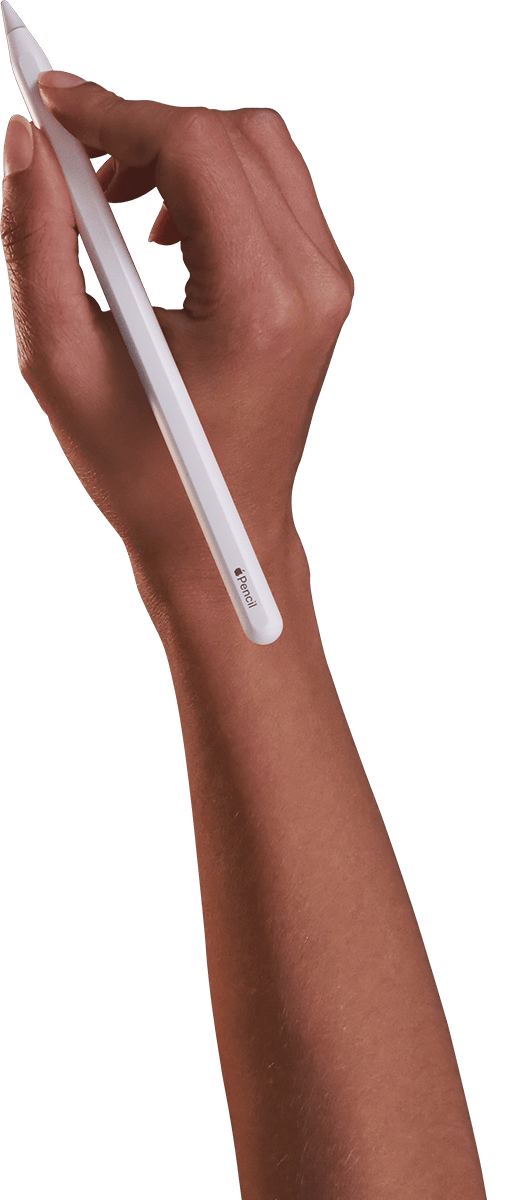
メインツールバーの「マルチセレクト」をタップします。
Apple Pencil で「タイムライン」のコンテンツやトラックを囲むか、直接なぞって選択します。
選択されたコンテンツやトラックは、赤いアウトラインでハイライトされます。
さらにコンテンツやトラックの周りをなぞると、現在の選択範囲に追加、または選択範囲から削除されます。
選択したコンテンツを長押しすると、コンテキストメニューが表示されます。「グループ」をタップします。
お知らせ
Apple Pencil をお持ちでない場合、または「マルチセレクト」で指を使いたい場合は、 「ムービー」設定 →「設定」 →「ジェスチャ」で「指でマルチセレクトを有効化」に切り替えます。
グループ化すると、選択したコンテンツは1つにまとめられ、タイトルが「グループ」となり、タイトル横に矢印が表示されます。
グループ内のトラックを展開して表示
グループの矢印アイコンをタップすると、グループを展開 / 折りたたみできます。グループが展開されている間、矢印は下向きに表示されます。
グループが展開されると、グループ内のすべてのトラックやコンテンツが表示されます。
グループ内の個々のコンテンツをタップすると、グループ内の他のコンテンツに影響を与えずに、そのコンテンツを編集できます。コンテンツをグループの内外にドラッグすることも可能です。また、メインツールバーの「+ ボタン」をタップして「作成」メニューのオプションを使うと、トラックやコンテンツを新たにグループに追加できます。
「タイムライン」上の他のコンテンツと同様に、グループを移動および調整できます。
グループ解除
グループを長押ししてコンテキストメニューを表示し、「グループ解除」をタップします。
グループ内のすべてのトラックやコンテンツは、「タイムライン」上で個別のトラックとして展開されます。
お知らせ
「マルチセレクト」ではグループ解除はできません。
コンテンツを Flipbook に変換
前述の手順に従い「マルチセレクト」でコンテンツを選択すると、オーディオを除くあらゆるコンテンツを Flipbook にまとめることができます。「マルチセレクト」でコンテンツの周りをなぞって選択します。選択したいずれかのエレメントを長押しすると、コンテンツのオプションメニューが表示されます。「Flipbook に変換」をタップすると、Procreate Dreams が変換を開始します。
Procreate Dreams でさまざまなコンテンツを Flipbook へ変換する方法については、 こちらの記事 をご覧ください。

Flipbook をトラックへ変換
コンテンツを「タイムライン」のトラックで個別に編集したい場合は、Flipbook をトラックに戻すこともできます。「タイムライン」上で Flipbook を長押しし、「Flipbook をトラックへ変換」を選ぶと実行できます。

コンテンンツを削除
削除したいコンテンツを長押しします。コンテンツのオプションメニューが表示されたら、「コンテンツを削除」をタップします。
「コンテンツ」のオプションメニュー(コンテンツを長押しすると表示されます)については、 こちら をご覧ください。
クリップボードにコピーができませんでした。
以下のリンクをコピーしてみてください。
お探しのものが見つかりませんか?
探しているものが見つからない場合は、YouTube動画のリソースを検索するか、直接お問い合わせください。いつでも喜んでお手伝いさせていただきます。