Pocket ハンドブック
クリップボードにコピーができませんでした。
以下のリンクをコピーしてみてください。
Help
We want to help you get the most out of Procreate Pocket. Find answers to your questions with these advanced settings and helpful resources.
Advanced Settings
Adjust advanced Procreate Pocket settings under the hood in the iPhone Settings app.
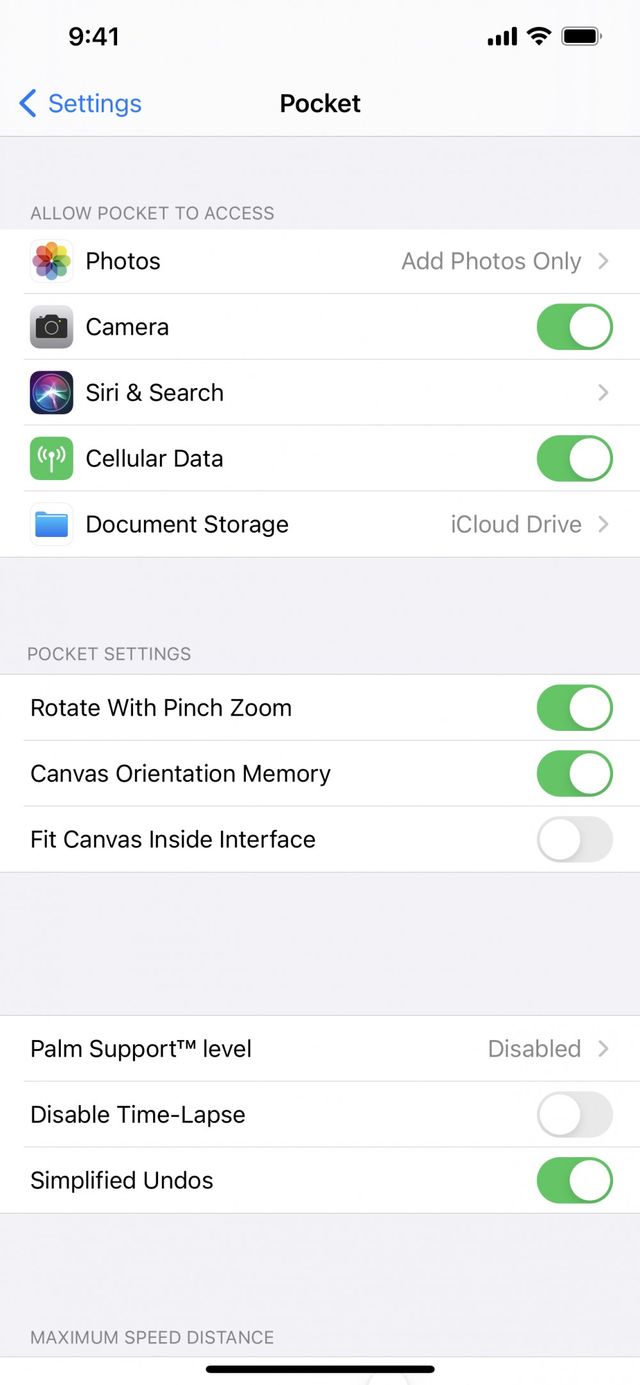
You can adjust most settings from inside Procreate Pocket. Some settings are fundamental to how Procreate Pocket’s touch responses interact with iOS.
To adjust these you need to head to the iOS setting for Procreate Pocket. You can do this via Settings → Apps → Procreate Pocket, or open up a canvas, expand the top toolbar with the ellipsis → Actions → Help → Advanced Settings to go to iOS Settings.
From here you can adjust the following core functions.
Allow Access
Toggle which iOS apps Procreate Pocket can access.
Allow or deny Procreate Pocket access to Photos app, Bluetooth, the inbuilt camera, Siri, and Document Storage.
Some of these permissions are important to Procreate Pocket’s functionality. For example, you will not be able to export an image from Procreate Pocket into Photos without allowing access. You can toggle access off and on anytime in Advanced Settings.
お知らせ
Document storage affects the storage location for files when you select to export to iTunes → it does not affect the actual storage location of all files in the app → these are always stored inside the app itself.
Procreate Pocket Settings
Tweak basic Procreate Pocket functionality.
Rotate with Pinch Zoom
Switch this on to make rotating while pinch zooming possible in Procreate Pocket.
プロの技
If you turn this off, you are still able to zoom but you cannot rotate your canvas with gestures.
Canvas Orientation Memory
Switch this on to make Procreate Pocket remember which way you left your canvas oriented.
Fit Canvas Inside Interface
Toggle whether you prefer your canvas to be overlaid by Procreate Pocket’s interface or to fit inside it.
Palm Support™ level
With Palm Support™ you can draw with your palm resting on the screen. Procreate Pocket will ignore your hand and register only your deliberate brushstrokes. Palm Support can be disabled altogether. Or, switch it to Standard (suitable for larger hands), or Fine (perfect for smaller hands).
Disable Time-Lapse
This toggle turns Time-lapse Video recording for your creations on or off.
プロの技
Turning this on will prevent all recording of Time-lapse videos on any current canvas and any future canvases you make, until you turn this toggle off.
Simplified Undos
Toggle whether Undo remembers steps within modes separately, or combined them into a single step. An example of this would be if you perform a series of Transformations on selected content. If you then commit those transformations, Procreate Pocket can remember every individual step of the process. Or, it can also remember only the outcome of the transformation.
Simplified Undos are on by default. This means Procreate Pocket doesn’t remember individual steps within a mode. It also means Procreate Pocket has the space remember more Undo steps. This allows you to reach further back over the creation of your work when performing Undo.
Help Tab Options
Access Procreate's Help Center website for useful resources and advanced settings.
お知らせ
You may have to swipe left on the Actions tabs in order to see the Help option.

Head to our Help Center , Procreate's dedicated site for our product Handbooks and articles that are designed to assist you with learning and using our apps.
Sends you to our Support Form , where you can contact our team directly for assistance with our apps, or if you have any other queries.
Brings back your base brushes, the Classic Library and the Procreate Library.
This is useful for restoring a base version of all the default brushes, in the case that you have modified or lost some.
Opens a browser and sends you to our Procreate Community , where you can participate in community discussions and and see information about what our team is working on.
Opens up your system browser and sends you to the Procreate Pocket Handbook, the book that you're currently reading.
This is a useful way to jump into the instructional material directly from the app.
Help Tab Expanded
Swipe upwards on the grey swipe handle to expand Help and see more options:

Takes you to the App Store and allows you to leave a review for Procreate Pocket.
We appreciate all the feedback we get!
Heads to the Settings app on your iPhone, and directly to Apps → Procreate Pocket. Here you can change advanced, app-wide settings.
クリップボードにコピーができませんでした。
以下のリンクをコピーしてみてください。
お探しのものが見つかりませんか?
探しているものが見つからない場合は、YouTube動画のリソースを検索するか、直接お問い合わせください。いつでも喜んでお手伝いさせていただきます。