Procreate Handbook
Sorry. We’re having trouble copying to your clipboard.
Try directly copying the link below.
Fonts
Explore the range of default Procreate fonts and iOS system fonts. Or, use your own favorite typefaces with easy import and drag-and-drop options.
Preinstalled Fonts
Get started right away using a wide range of pre-loaded fonts.


Procreate Fonts
Procreate ships with 26 default fonts. These fonts are available under an open-source licence .
This means that you may use them for personal and commercial projects:
Anton
Galgo
RL Madena
Sora
Space Grotesk
Azeret Mono
TroubleSide
Chillside
SS Soapy Hands
Bold Pixels
Player Sans Mono
Dot Gothic 16
Tecnica
Smiley Sans (Chinese Simplified, Latin, Cyrillic, Greek, Kana)
Alkalami (Arabic)
Mirza (Arabic)
Rubik (Arabic)
Alkatra (Hindi)
Poppins (Hindi + Latin)
Teko (Hindi)
Kazuki Reiwa (Japanese)
KN Yuanmo SC (Chinese Simplified)
Yusei Magic (Japanese)
Zen Antique (Japanese)
Daruma Drop One (Hiragana + Katakana only)
Pridi (Thai)
iOS System Fonts
Procreate gives you access to every font in iOS.
Your iPad comes with almost a hundred built-in fonts you can use in your art and design. These typefaces range from playful to professional. They include cursive, capitalized, handwritten, and type-based. The number of fonts available varies depending on which version of iOS is on your device.
Browse Fonts
Preview every font available on your iPad with a quick scroll through the Font list.
To view the fonts available, add some Text to your artwork. Go to the Edit Text panel, and look through the Font list. The listed Fonts are in alphabetical order.
The name of each font in the list also displays the appearance of the font. You can see what each font looks like by scrolling through the list.
Alternately, tap any font in the Font list to see it applied to your selected Text.
Import Fonts
Discover the different ways to import your own fonts into Procreate.
You can import fonts through Procreate’s interface. You can also use AirDrop, the Files App, drag-and-drop, or bulk import your favorite fonts.
Procreate can import TTC, TTF, and OTF files.
Heads Up
If your font downloads as a ZIP file, you must unzip it to import it into Procreate.
Edit Text interface
Import fonts from within Procreate.
Tap Actions > Add > Add Text. Once you’ve edited your text to your liking, tap Edit Style > Import Font.
You can now browse through the Files app to the folder where you saved your font. Tap it to import it, and it will appear in the Fonts list in Procreate.
Drag and Drop
Drag a font from your iPad Files app and into Procreate.
Open the iPadOS Files app in Split View. Navigate to your fonts folder, and drag and drop your chosen font from Files into Procreate. It will appear in the Fonts list.
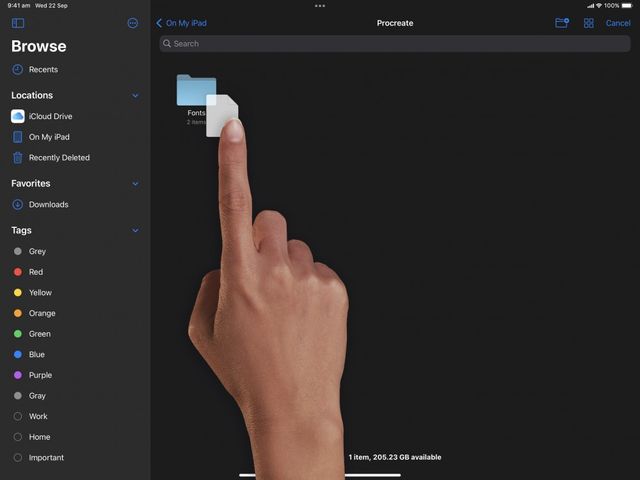
Files App
Download a font to Files and drag it into the Procreate Fonts folder.
Open the iPadOS Files app. Navigate to your fonts folder, then tap and hold your chosen font. With another finger, tap On My iPad → Procreate → Fonts. This is where Procreate stores all imported fonts. Drop your font into this folder to install it.
Pro Tip
Delete fonts from Procreate by removing them from this folder.
AirDrop
AirDrop a font from your Apple computer to Procreate.
Make sure AirDrop is active on both your computer and iPad.
On your computer, open Finder and navigate to your font files. Select one or more font files.
Right-click on them and select Share → AirDrop, then select your iPad from the list.
A popup window will appear on your iPad asking where to open the file. Select Procreate from the list.
Your font file will immediately appear in the Font section of the Edit Text interface, ready for use.
Using Alternative Font Characters in Procreate
If you have imported a custom font that has alternative glyphs you would like to use in your work, you may have to install a third-party app that allows you to view all the available characters (and variations) for that font.
Locate the alternative character, then copy and paste it into the text field in Procreate.
Heads Up
You install third-party software at your own risk. Please exercise caution when doing so.
If you have a Mac, you could also use the Apple software Font Book to access and copy alternative characters.
Sorry. We’re having trouble copying to your clipboard.
Try directly copying the link below.
Still have questions?
If you didn't find what you're looking for, explore our video resources on YouTube or contact us directly. We’re always happy to help.