Procreate Handbook
Sorry. We’re having trouble copying to your clipboard.
Try directly copying the link below.
Keyboard Shortcuts
Pair any compatible keyboard to access an array of advanced features.
Keyboard Connection
Procreate’s keyboard shortcuts work with any connected keyboard.
Connect any compatible keyboard via Bluetooth or the iPad Pro Smart Connector.
Keyboard Shortcuts List
Procreate tab:
⌘ ,: Procreate Settings (iPadOS Settings → Apps → Procreate)
⌘ H: Hide Procreate
⌥ ⌘ H: Hide other apps
⌘ K: Opens the Actions Menu (wrench icon)
File tab:
⌘ O: Open (does not currently function)
Pro Tip
In the File tab, tap 'Open Recent' and select files recently added to the Files app to add them as new canvases in the Gallery.
Edit tab:
⌘ Z: Undo your previous action
⇧⌘ Z: Redo your previously-undone action
⌘ X: Cut the layer or selection (remove it and place it in the clipboard)
⌘ C: Copy the layer or selection (send a copy to the clipboard)
⌘ V: Paste the current content from the clipboard into your canvas
⌘ A: Copy all the visible selected content to the clipboard
⌘ J: Duplicate the layer or selection to a layer above
⌘ D: Clear selection (when using Selections, deselect everything)
⌘⌫: Erase all content from the layer or selected area
X: Switch between your current and previous color
Pro Tip
You can also tap hold the color in the top right to do this.
🌐 D: Enable Dictation
🌐 E: Summon the emoji menu when in Text input
Tools tab:
B: Switch to the paint tool, or opens Brushes if Paint is already active
E: Switch to the erase tool, or opens brushes if erase is already active
[: Decrease brush size by 5%
]: Increase brush size by 5%
⌘ [: Decrease brush size by 1%
⌘ ]: Increase brush size by 1%
⇧ [: Decrease brush size by 10%
⇧ ]: Increase brush size by 10%
⌘ U: Enter the Hue, Saturation, and Brightness adjustment for the layer or selection
⌘ B: Enter the Color Balance adjustment for the layer or selection
S: Enter the Selections tool
V: Enter the Transform tool
When using Transform:
▲ (up arrow): Nudge content upwards by one pixel
▼ (down arrow): Nudge content downwards by one pixel
◀ (left arrow): Nudge content leftwards by one pixel
► (right arrow): Nudge content rightwards by one pixel
L: Open Layers
C: Open Colors
⌥: Activate Modify button ( ⃞ square between sidebar sliders) when iPadOS version newer than 17
M: Activate Modify button ( ⃞ square between sidebar sliders) when iPadOS version 17 and below
Spacebar: Invoke QuickMenu
View tab:
⌘ 0: Toggles fullscreen within the Procreate interface
⌘ ;: Toggles Perspective Guide visibility
Window tab:
⌘ W: Close Procreate fully
⌘ M: Minimise Procreate
🌐 F: Enter Full Screen (make Procreate occupy the whole screen)
⌃🌐 C: Center the Procreate window
⌃🌐 ◀: Align the window the left half of the screen
⌃🌐 ►: Align the window the right half of the screen
⌃🌐 ▲: Align the window the upper half of the screen
⌃🌐 ▼: Align the window the lower half of the screen
⌃⇧🌐 ◀: Arrange your left and right windows
⌃⇧🌐 ►: Arrange your right and left windows
⌃⇧🌐 ▲: Arrange your top and bottom windows
⌃⇧🌐 ▼: Arrange your bottom and top windows
⌥🌐 ◀: Move Procreate to left Slide Over
⌥🌐 ◀: Move Procreate to right Slide Over
🌐 \: Hide Slide Over
Shortcut access methods
Access the various keyboard shortcuts by setting Procreate to Windowed mode and tapping on the different menu bars at the top of your iPad screen.

To set your apps to Windowed mode, head to Settings → Multitasking & Gestures → toggle on Windowed Apps. To access the top menus in Procreate, tap twice on the top bar in the interface, then swipe downwards from the top of the screen:

With Windowed Apps enabled (see section above), tap twice on the top menu bar in Procreate.
After tapping twice to enter Windowed mode with Procreate, swipe downwards (slightly off center) to summon the menu bar. Each tab of the menu bar shows you the different functions and associated keyboard shortcuts, and you can also search in the Help tab to find a specific function or shortcut for it.
Procreate’s keyboard shortcuts are based on existing standards in other illustration software.
Heads Up
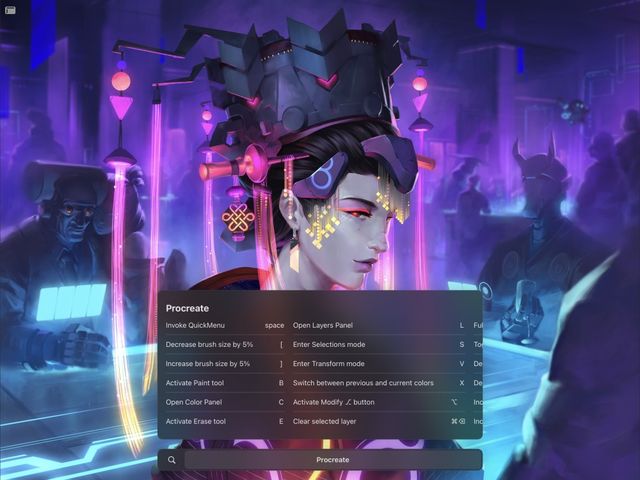
To access Keyboard Shortcuts when working on iPadOS versions below 26, hold down the CMD key on your keyboard.
Sorry. We’re having trouble copying to your clipboard.
Try directly copying the link below.
Still have questions?
If you didn't find what you're looking for, explore our video resources on YouTube or contact us directly. We’re always happy to help.