Procreate Handbook
Sorry. We’re having trouble copying to your clipboard.
Try directly copying the link below.
Uniform
Uniform Transform swiftly moves, scales, and rotates your layers. Uniform Transform does this while perfectly preserving your original image proportions.
Move
After activating Transform, touch and drag to move the layer or selection.
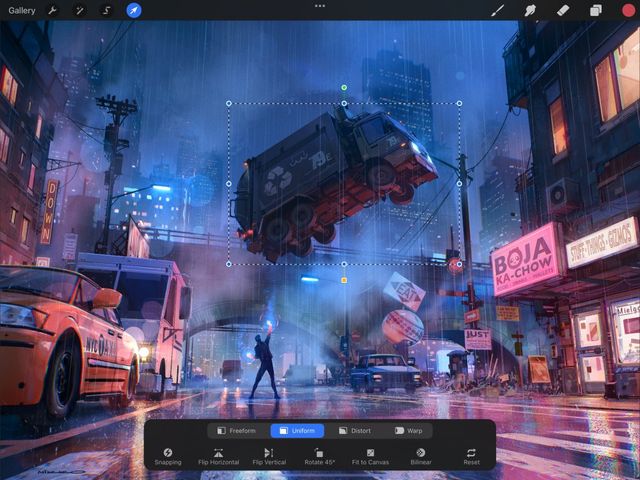
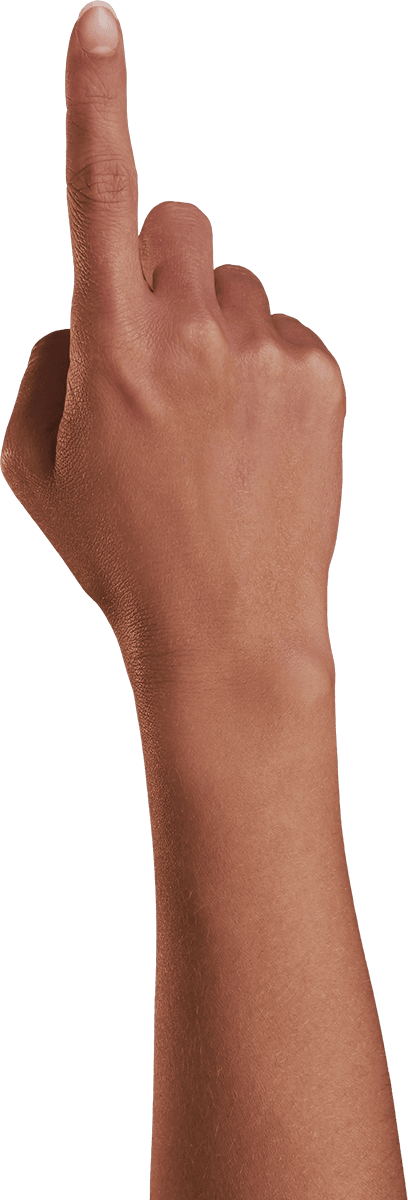
Touch and drag anywhere on the canvas - inside or outside the bounding box - to move your content.
Snapping
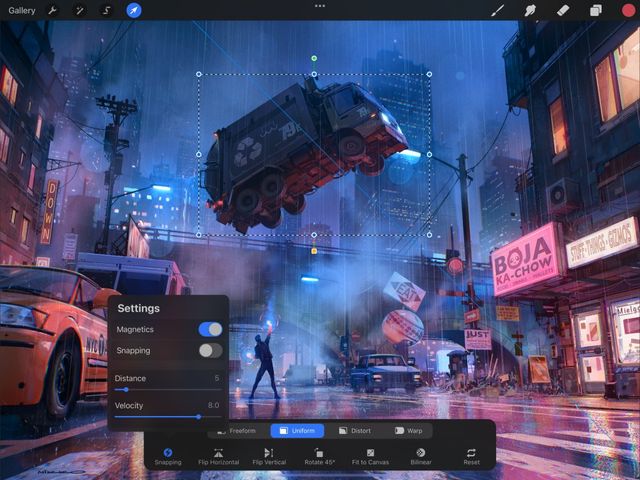
While transforming, snap your layer based on other content or the canvas itself.
Tap the Snapping button in the Transform toolbar to toggle it on and off.
While Snapping is active, you’ll see blue and yellow guidelines popping as you transform your content. The blue lines help you snap your content to other layers, and the yellow lines help you snap your content to the canvas quadrants and central points.
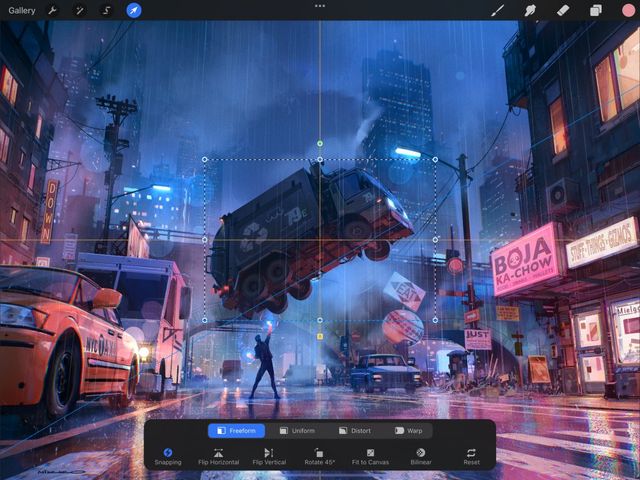
The Snapping menu also contains Magnetics, which help you to align your content with an axis that you define.
Read more about Snapping .
Uniform Transform
Uniform mode offers two different ways to transform an object. Uniform mode does this while preserving its original proportions.
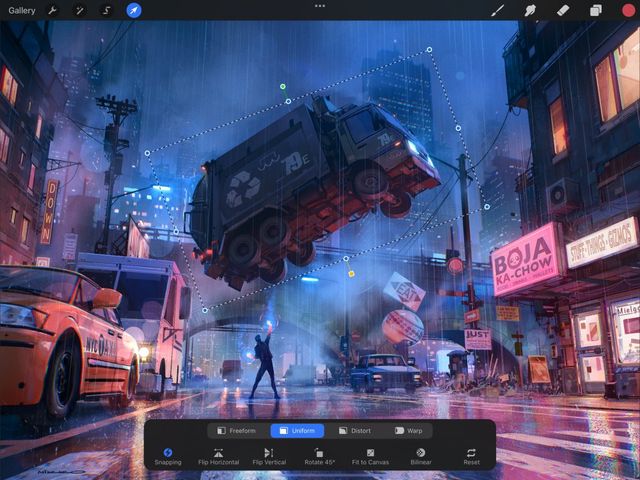

Quick Scale (transform from middle)
Pinch inside the bounding box to uniformly scale your content.
The image anchors at the exact middle of the bounding box, and will shrink or grow from that center point.
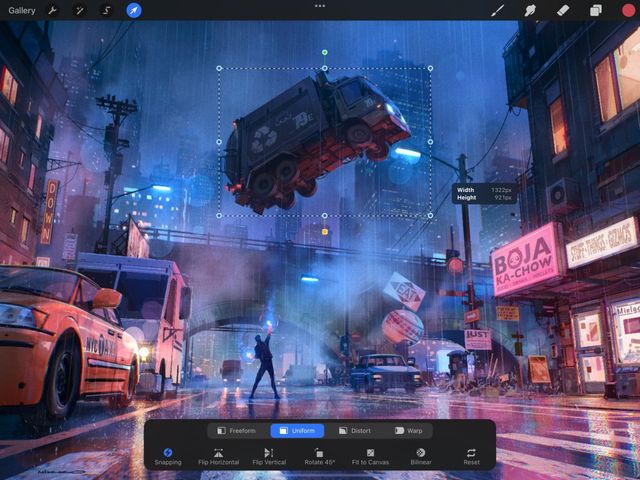
Nodes (transform from corners or sides)
Drag any corner or side node of the bounding box to uniformly scale your content.
The image anchors at the opposite node, and will shrink or grow from that point.
Sorry. We’re having trouble copying to your clipboard.
Try directly copying the link below.
Still have questions?
If you didn't find what you're looking for, explore our video resources on YouTube or contact us directly. We’re always happy to help.